 SayloeGuides
To translate selected text on your Mac, use the built-in Translate menu or a desktop app with a keyboard shortcut.
| Method | Shortcut or action | Best for |
|---|---|---|
| macOS Translate | Select text → Control-click → Translate | Occasional translation without installing an app |
| DeepL for Mac | Hold ⌘ and press C twice | Translating selected text with DeepL |
| Sayloe | Double-tap ⌘ | Selected-text translation and voice dictation |
These are different gestures: DeepL uses ⌘ + C + C. Sayloe uses two taps of the ⌘ key itself.
Disclosure: This article is published by Sayloe’s developer.
1. Use the Built-In macOS Translate Menu
For occasional translations, start with the built-in option:
- Select text in a supported app.
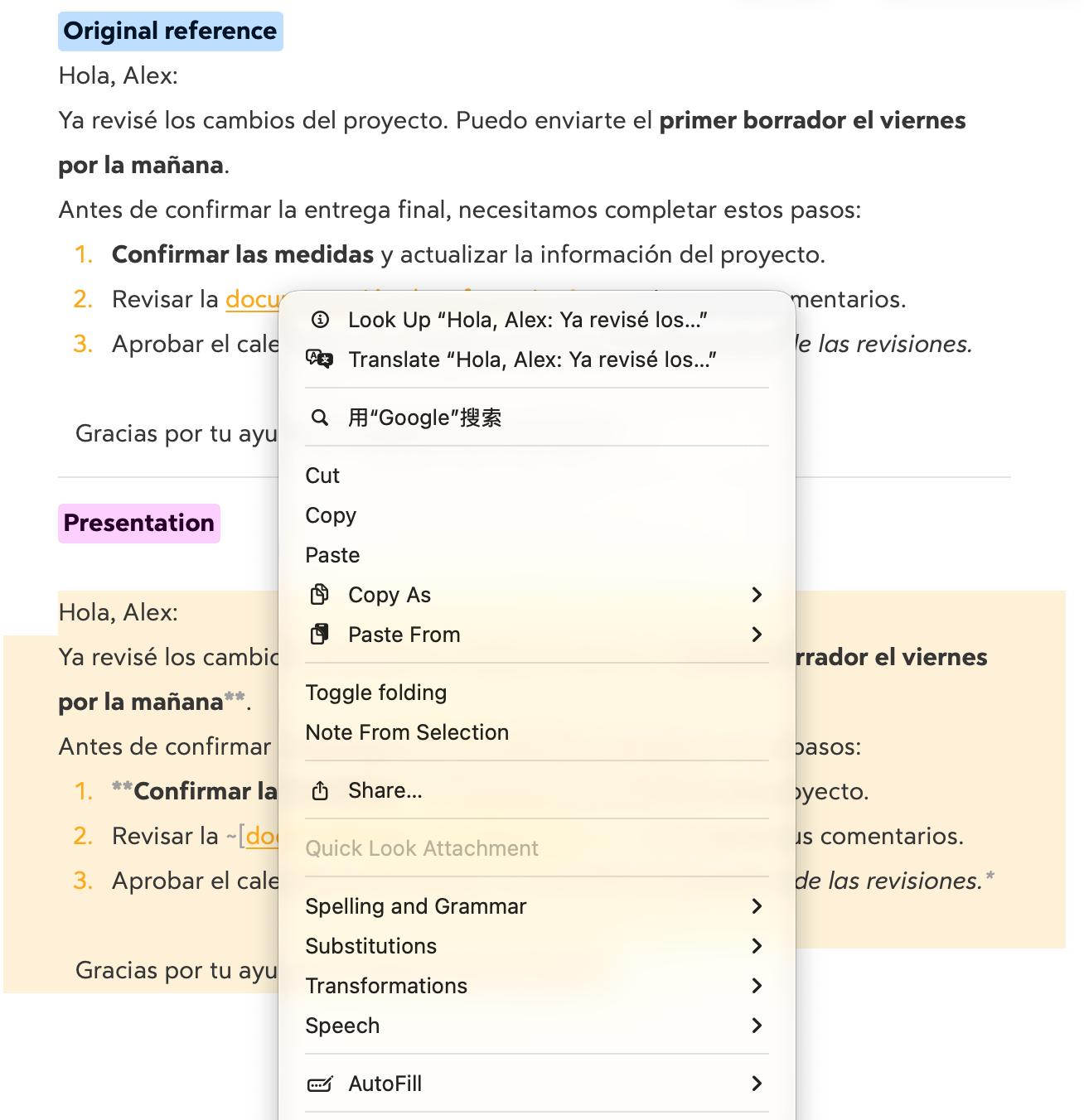
- Control-click or right-click the selection.
- Choose Translate.
- Select the target language.
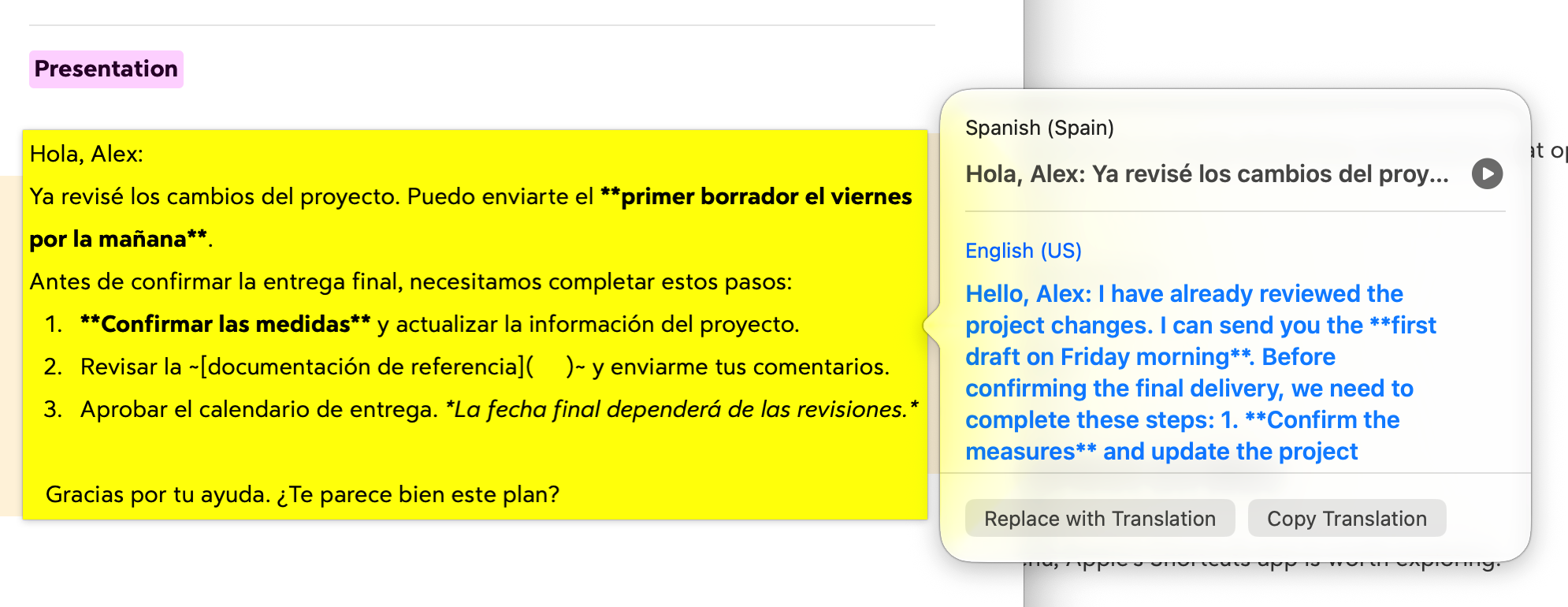
You can copy the result. In supported editing contexts, Replace with Translation inserts it in place of the original.
This is a context-menu action, rather than a universal translation keyboard shortcut. Availability depends on the app, language, and macOS version.
See Apple’s translation instructions.
2. Use DeepL’s ⌘ + C + C Shortcut
DeepL’s Mac app lets you translate selected text with a keyboard shortcut:
- Install and open DeepL for Mac.
- Select the text you want to translate.
- Hold ⌘ and press C twice.
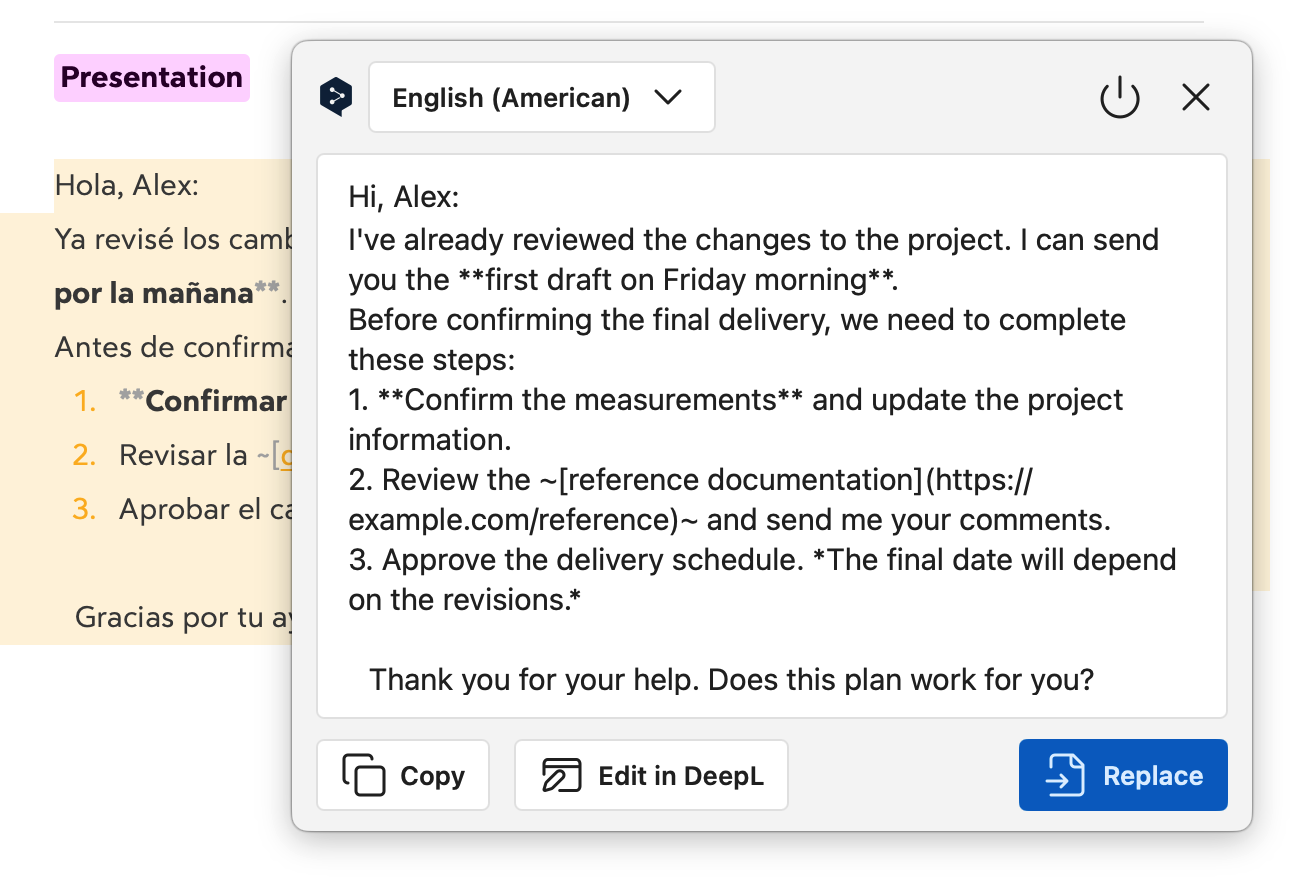
- Read the translation in the result window.
Make sure the shortcut is enabled in DeepL’s settings. You can also customize it there if it conflicts with another app.
This is a useful option if you already prefer DeepL and want to access it without opening its website.
See DeepL’s desktop shortcut instructions.
3. Use Sayloe’s Double-Tap ⌘ Shortcut
Sayloe uses the same shortcut for translation and voice dictation, depending on whether text is selected.
Translate selected text
- Open Sayloe.
- Select text in a compatible app.
- Double-tap ⌘.
- Review the translation, then copy it or replace the original in a supported text field.
For example, a customer support agent can translate a customer’s message while keeping the conversation visible.
Dictate a reply
Without a text selection, double-tapping ⌘ opens voice dictation.
Speak your reply, review the transcription, and insert it as spoken—or translate it before insertion. This can help when reading and replying in different languages.
Sayloe requires an Apple Silicon Mac running macOS 15 or later. Text replacement depends on the destination app and field. Voice dictation and AI translation require an internet connection.
If Your Translation Shortcut Doesn’t Work
- Check the app is running. Open DeepL or Sayloe and try again.
- Check shortcut settings. Make sure the shortcut is enabled and isn’t conflicting with another tool.
- Try another app. Test selectable text in Safari to help identify compatibility issues.
- Review requested permissions. Follow the translation app’s setup instructions.
- Check language availability. Supported languages differ by tool and engine.
Which Method Should You Choose?
Use macOS Translate for occasional translations without installing anything. Choose DeepL if you want its translation service through a keyboard shortcut. Choose Sayloe if you want selected-text translation and voice dictation through double-tap ⌘.
For a broader walkthrough, see How to Translate Selected Text on Mac Without Switching Apps.