 SayloeGuides
The best dictation app for Mac depends on what you want to finish: a quick note, a client email, an interview transcript, or a reply in another language. Start with Apple Dictation if you just want to try voice typing. Look at Spokenly for free local transcription, Superwhisper for custom workflows, and Sayloe for dictation with optional translation.
The important difference is not just which app recognizes your words. It is what happens next: does the text appear in your document, wait in a preview for review, or become a transcript you export?
The short list: choose by the work you do
| App | A useful starting point for | Free option or payment model | Offline speech recognition |
|---|---|---|---|
| Apple Dictation | Occasional notes and messages | Included with macOS | Depends on language and configuration |
| Superwhisper | Custom prompts, modes and model choices | Free Whisper tier; paid Pro | Local models available |
| VoiceInk at tryvoiceink.com | Local dictation with a one-time license | 7-day trial; paid license | Local models available; check hardware |
| Spokenly | Frequent dictation without a local usage cap | Unlimited free local models; paid extras | Yes, with local models |
| Wispr Flow | Turning conversational speech into edited writing | Limited free plan; paid subscriptions | Cloud processing |
| MacWhisper | Recordings, interviews and transcript exports | Free edition; paid Pro | Yes, with local models |
| Sayloe | Reviewing a dictated reply, optionally translating it | Free beta; paid plans not yet available | Cloud voice recognition; local voice is planned |
Disclosure: Sayloe’s developer publishes this guide. We reviewed official product pages on November 5, 2026. We have not run an identical-audio accuracy or speed benchmark across these seven apps. Homepage screenshots identify the products; they are not evidence of transcription quality. The order below is not a numerical ranking.
If you already use Wispr Flow and want to switch, see the separate Wispr Flow alternatives guide. This article is for choosing a dictation tool from scratch.
Three differences that matter before you download
A live preview is not necessarily live typing into your document
Some tools show words in their own panel while you speak, then insert the finished text. Others write directly into the active field. If you want words to appear inside Word as you speak, a live preview alone will not meet that need.
That distinction comes up in Mac users’ discussions about real-time insertion. Check it in the app you actually use rather than assuming that “real-time” always means the same thing.
Offline recognition does not guarantee offline AI editing
An app can recognize speech on your Mac, then send the transcript to a cloud model for cleanup or translation. Check the recognition model and any processing step after it. Download local models before travelling, and try your complete workflow with Wi-Fi turned off.
Dictating a reply is different from transcribing a recording
For emails and chat, the shortcut and insertion behavior matter most. For a research interview, you may care more about timestamps, speaker labels and exports. An app can support both, but one workflow may be much more developed than the other.
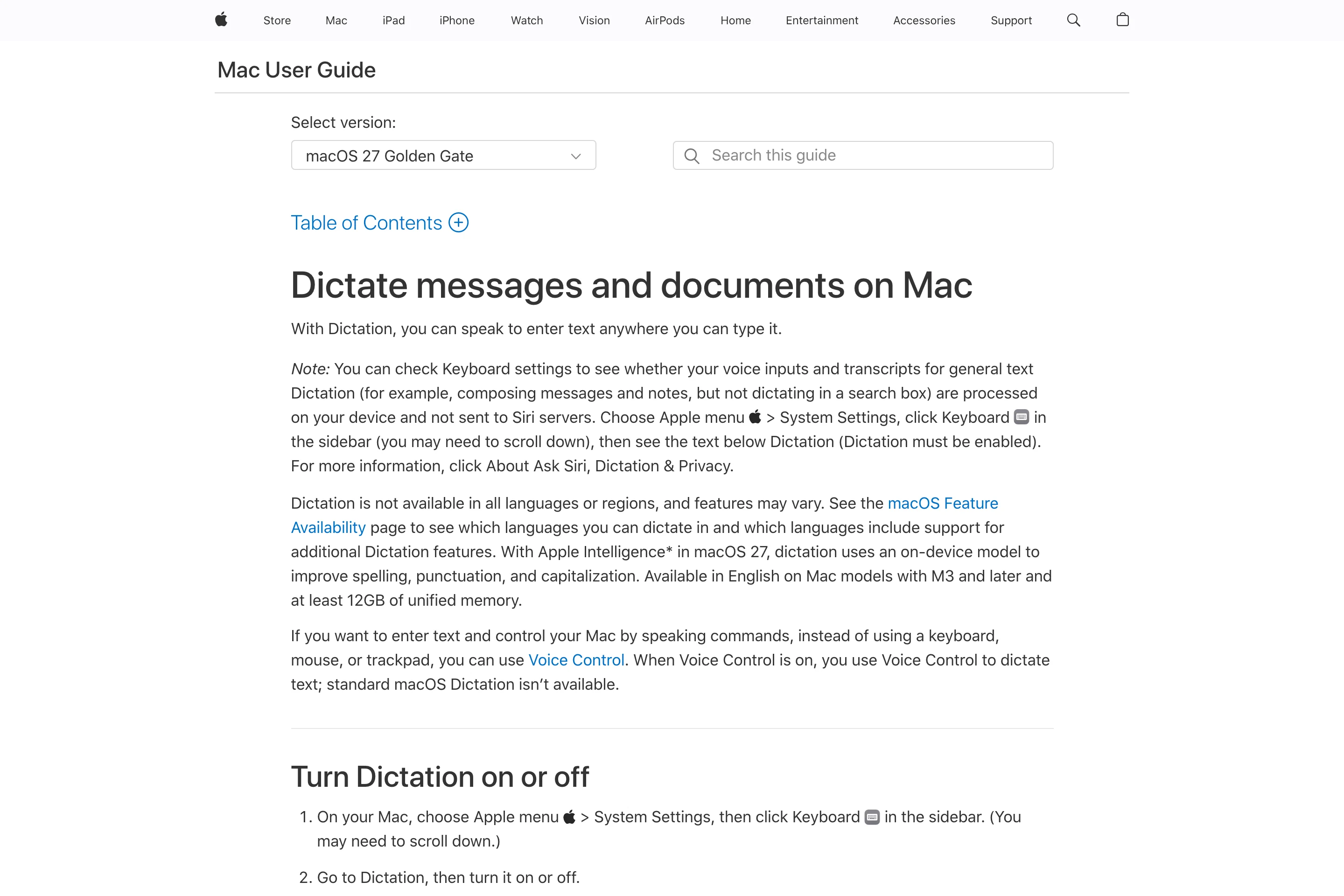
1. Apple Dictation: start here for occasional voice typing
Best fit: short notes, everyday messages and trying dictation without another download. Price: included with macOS.
Open System Settings → Keyboard → Dictation, turn it on, then check the language, microphone and shortcut. Click where you want to write, activate Dictation and speak.
A freelancer writing a quick project update may not need anything more. Try it before paying for features you will rarely use.
Check before choosing: Apple’s Dictation instructions explain how to see whether your setup needs internet. Availability depends on your language and configuration. Dictation also ends when it has not detected speech for about 30 seconds, which matters if you pause to think.
Choose another option if you need a particular speech model, configurable AI processing, or a separate review-and-translate step before insertion.
2. Superwhisper: for people who want to shape the output
Best fit: different modes for emails, messages and structured writing. Free option: a free Whisper tier; Pro adds further capabilities.
Superwhisper lets you configure modes, prompts and model choices. That is useful when the same spoken thought should become a casual message in one app and a structured update in another.
For example, a consultant might want brief chat replies during the day and a more organized client update afterward. The benefit is control over the workflow, rather than a promise that one model is always more accurate.
Check before choosing: the current free tier lists unlimited Whisper-model usage and custom prompt control. The site also describes a 3,000-word Pro trial. Local models work best on Apple Silicon; cloud models need internet. Check the selected speech and processing models if the whole workflow must stay offline.
Choose another option if you want minimal configuration and do not expect to use custom modes.
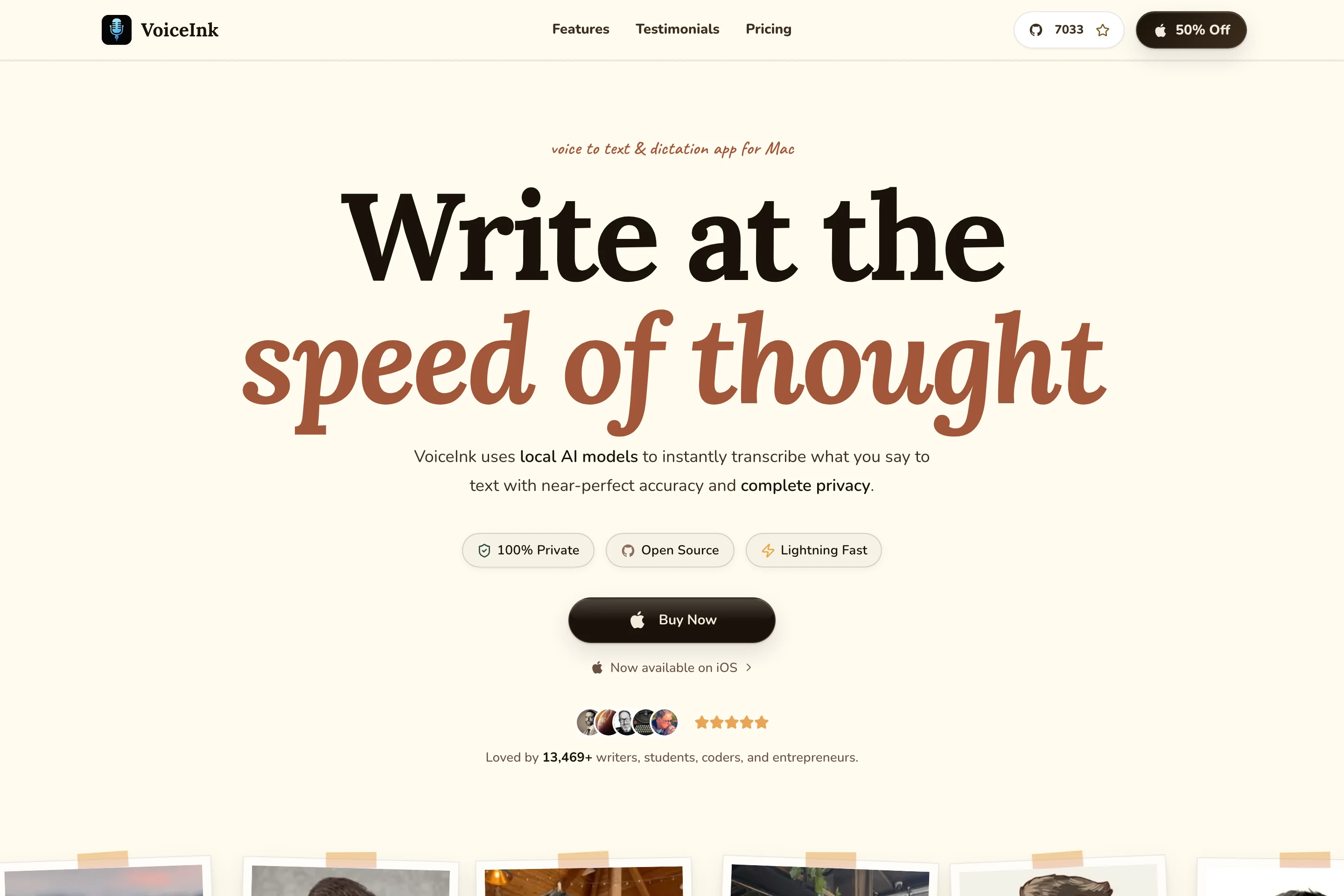
3. VoiceInk: for local dictation with a one-time license
Best fit: users who want local speech models and prefer buying a license. Free option: a 7-day trial of the official app.
This entry covers VoiceInk at tryvoiceink.com. Similarly named products exist, so use this domain when checking the features and download.
VoiceInk offers local model choices, vocabulary tools and configurable workflows. An engineer who regularly dictates product names and technical terms may find those controls useful. Its website offers one-time licenses rather than requiring a recurring subscription for the app license.
Check before choosing: the current installation guide specifies macOS 15 or later. It recommends cloud transcription on Intel Macs because local models do not run reliably there. Optional cloud enhancement is not the same as local transcription; choose models deliberately. Download models before relying on offline use.
Choose another option if you need a permanent free ready-to-install tier or your Mac does not meet the current requirements.
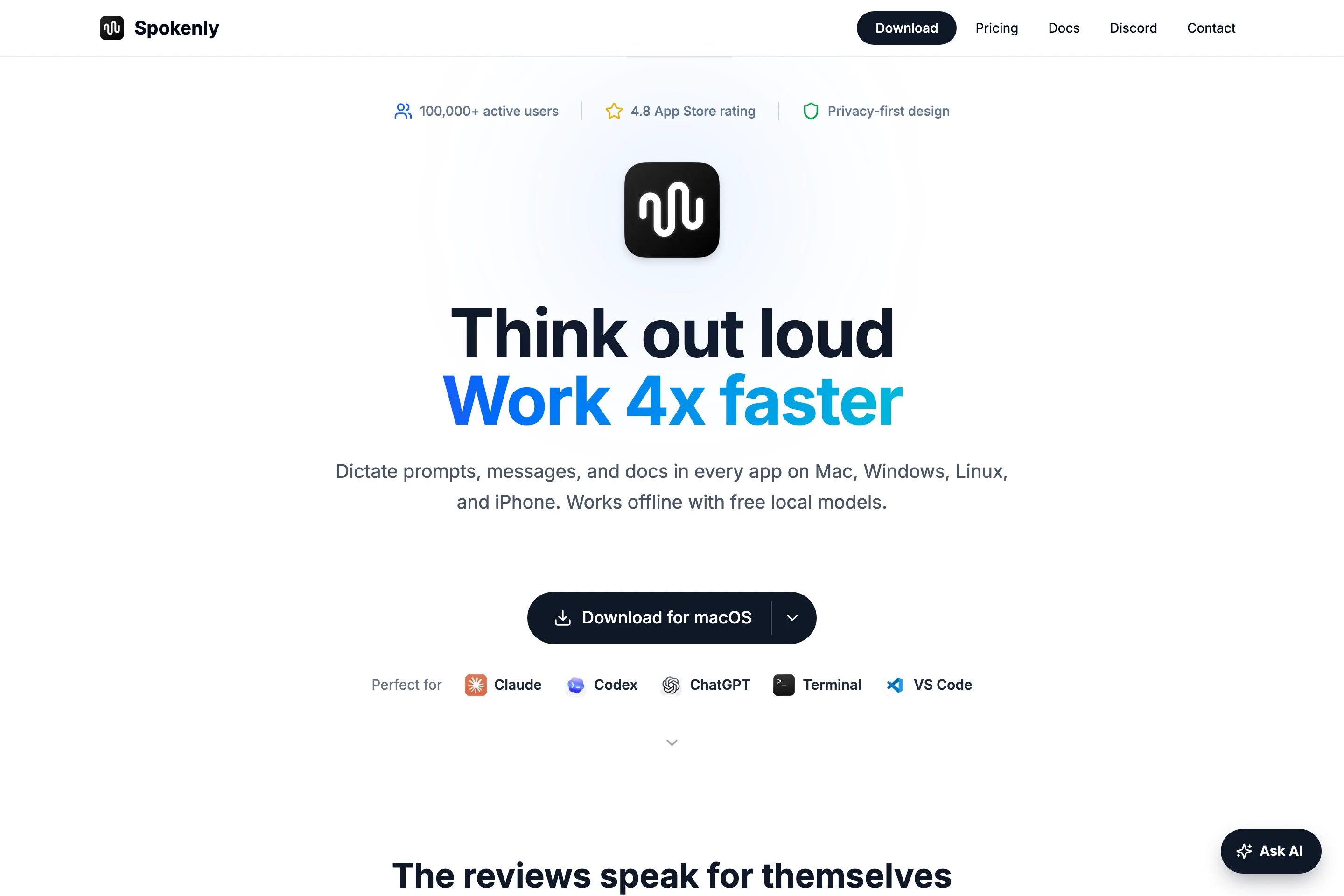
4. Spokenly: for unlimited free local dictation
Best fit: frequent voice typing without a local word allowance. Free option: unlimited local Whisper and Parakeet models.
Spokenly is a practical starting point if you dictate frequently and want to avoid recurring charges for basic local recognition. Its free offering includes offline operation and does not require an account.
A freelance writer can try it on longer drafts; an export sales representative can test the recognition model with the names and languages used in daily correspondence.
Check before choosing: model language coverage differs. A model being available does not establish that it handles your accent or terminology well. Cloud services connected through your own API keys can incur separate provider charges; managed cloud and AI features are not all included free. The site lists Local+ as a one-time purchase and a separate Pro option.
Choose another option if you want bundled cloud processing and do not want to configure models or provider keys.
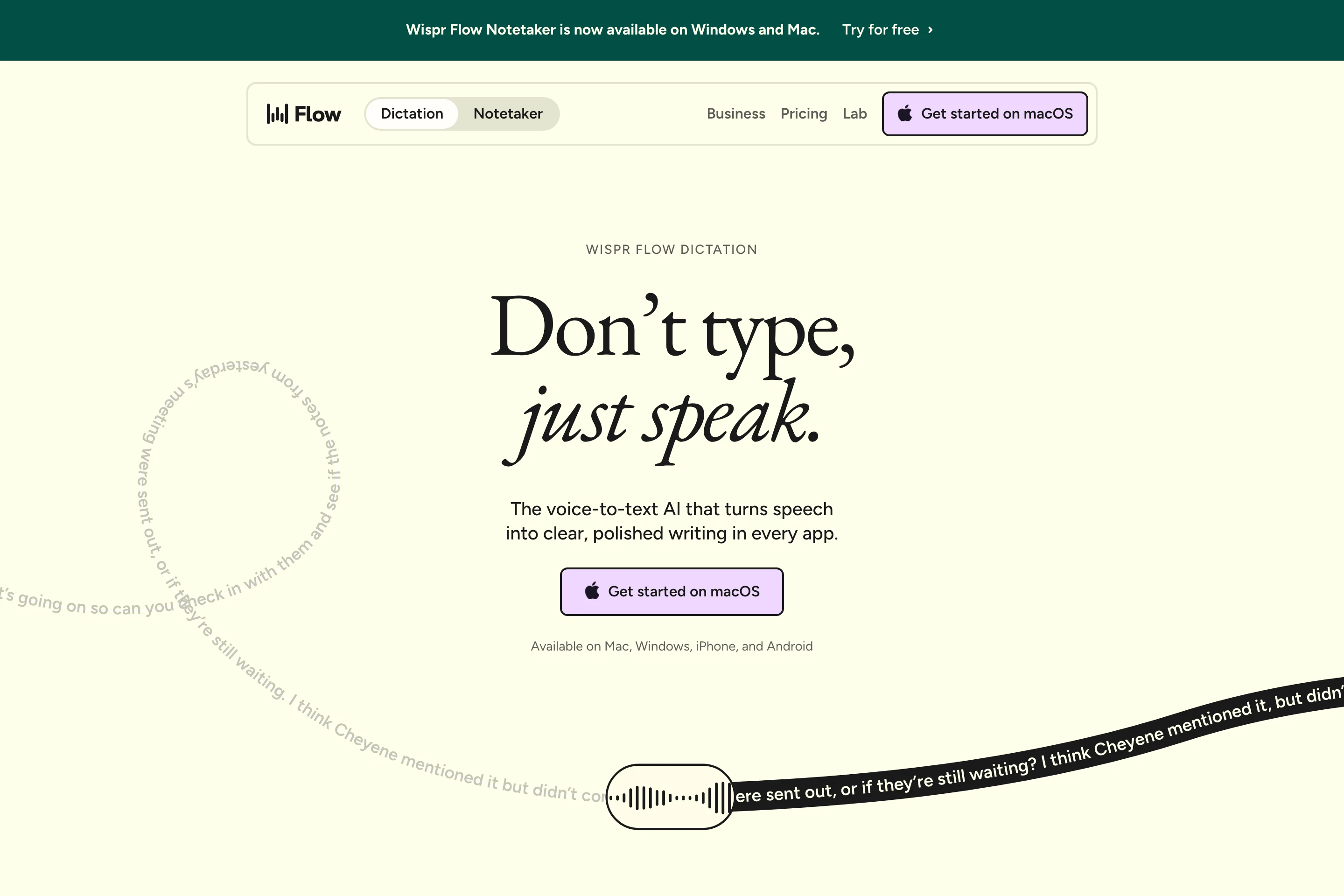
5. Wispr Flow: for AI-assisted everyday writing
Best fit: speaking conversationally and receiving cleaned-up text. Free option: limited weekly usage; paid plans add unlimited dictation.
Wispr Flow focuses on turning natural speech into usable writing, with text cleanup and vocabulary-related features. A customer support specialist drafting longer replies may value fewer filler words and more readable wording.
This can save editing, but review messages where a qualification matters. “We may deliver Friday” must not become “We will deliver Friday,” regardless of which app you choose.
Check before choosing: Wispr’s privacy page describes server-side transcription and configurable storage and training preferences. Turning storage off is different from processing speech entirely offline. Its pricing page lists a limited free allowance; confirm the current terms instead of relying on an old word-cap figure.
Choose another option if internet-free speech recognition is a requirement.
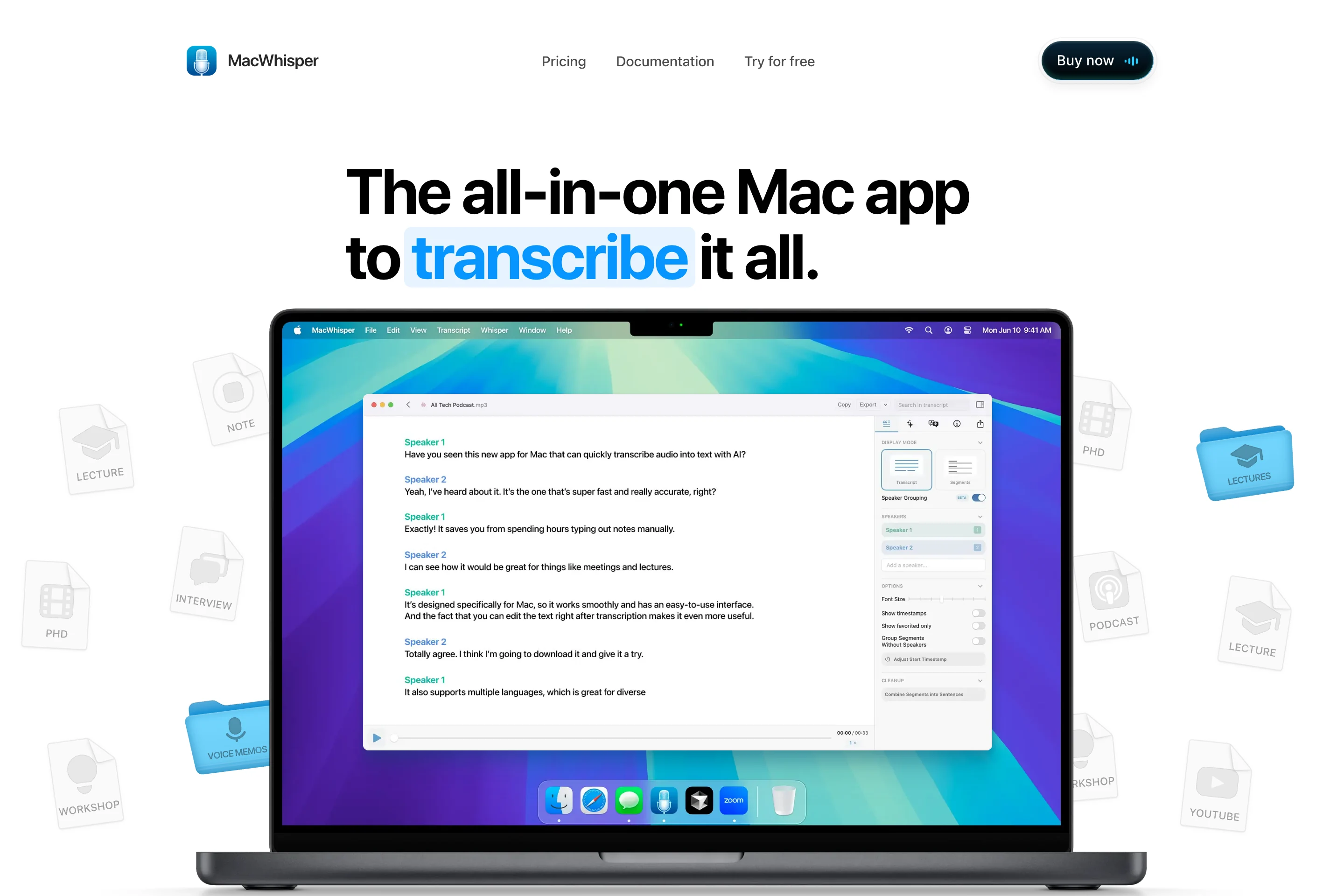
6. MacWhisper: for audio files, interviews and transcript work
Best fit: converting existing recordings into editable text. Free option: a free edition alongside paid Pro features.
MacWhisper is worth considering when your source is a recording rather than a thought you want to type. It offers local transcription, file import, transcript tools and exports, and also includes dictation capabilities.
For a researcher reviewing an interview or a consultant documenting a recorded meeting, these tools can matter more than a fast shortcut alone. Check that the model, speaker features and export format you need are included in your edition.
Check before choosing: local models and optional cloud features have different processing paths. Also try its dictation workflow if your main task is email: a capable recording workspace is not automatically your preferred way to enter a two-sentence reply.
Choose another option if you mostly write short messages and will rarely use a transcript workspace.
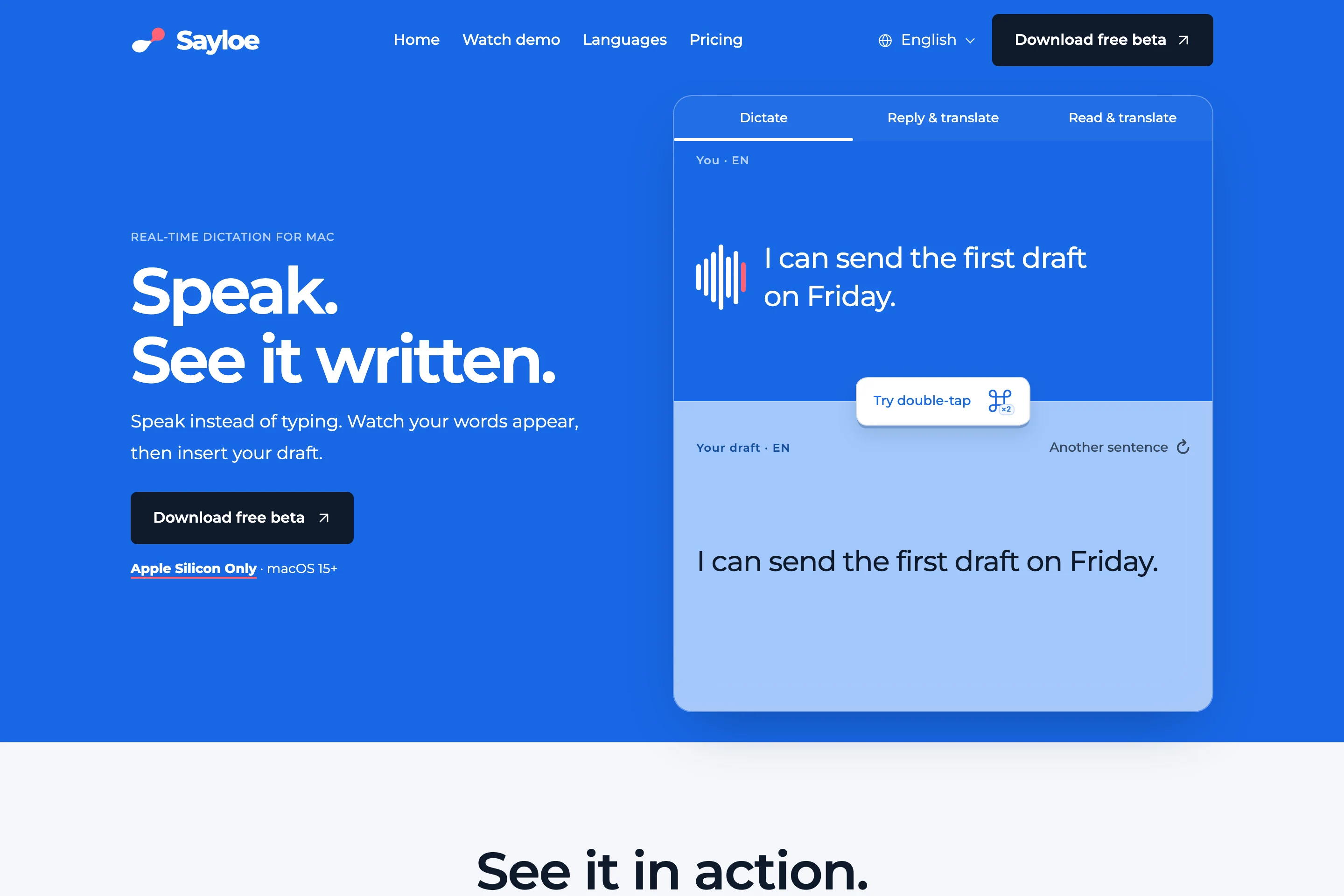
7. Sayloe: for reviewing a reply and sending it in another language
Best fit: Mac users who dictate everyday messages and sometimes need translation. Requirements: Apple Silicon and macOS 15 or later. Free option: the current beta is free to try.
Sayloe is built around a small, repeatable workflow: speak, see the transcript, review it, then insert it where you are working. Translation is optional.
- Place your cursor in a compatible text field, with no text selected.
- Double-tap ⌘ to open dictation.
- Speak and follow the live transcript in Sayloe’s panel.
- Review the finished text, then insert the original or translate it before insertion.
The live transcript appears in Sayloe, not continuously inside your destination document. Insertion and replacement depend on the app and field; copying is the fallback.
For a procurement specialist replying to a supplier, the useful part is reviewing names, quantities and dates before inserting the message. For international customer support, it is being able to prepare a reply in another language without repeatedly opening a translation website.
Sayloe also translates selected written text through double-tap ⌘. That gives you both sides of a conversation: read the incoming message, then prepare a reply. See the voice typing workflow and speech translation workflow.
What is available, and what is still planned?
Available now: live cloud transcription, review before insertion, optional transcript translation, and selected-text translation. Apple on-device text translation is a separate feature requiring supported language models.
Planned: local voice transcription. It is marked “Coming later” on the website, so do not choose Sayloe today for offline dictation. We are not announcing a release date or language coverage for that feature here.
Pricing: the website describes a free allowance of 60 transcription minutes and 20,000 source characters of AI translation per week with Google sign-in, with rollout details depending on the beta version. Basic and Advanced remain planned; paid subscriptions are not yet available. Check the current pricing and availability for your version.
Choose another option if you need offline voice recognition now, imported audio-file transcription or automatic meeting capture. Those are not the workflow described here.
Try this five-minute test before you decide
Use the same microphone, language and sentences in each app. Try your actual destination app too: success in Notes does not prove insertion works identically everywhere.
These are prepared test sentences, not measured app outputs:
- Customer support: “Please do not cancel the order. I only want to change the delivery address.” Check the negative and the requested action.
- Engineering: “Use revision B, keep the 0.5 mm clearance, and do not change the connector.” Check the revision, decimal and unit.
- Procurement: “We can approve 120 units after the sample passes inspection.” Check the quantity and condition.
- Research or freelance work: dictate a name you use often, then pause naturally and continue. Check whether you can correct the name and recover the whole thought.
For multilingual work, test your actual language pair: for example, prepare a Spanish reply from an English draft or review a German customer’s message before answering in English. Check speech-input support separately from translation-target support. Do not assume every local model or app supports every pair.
Judge the editing you need to do afterward, whether the text reaches the correct field, and whether the workflow still works with internet disconnected if that matters to you. We have not assigned accuracy percentages or battery scores.
Frequently asked questions
What is the best free dictation app for Mac?
Apple Dictation is the simplest starting point because it is included with macOS. For unlimited free local models, compare Spokenly and Superwhisper. VoiceInk’s official app offers a trial rather than a permanent free tier.
Which Mac dictation apps work offline?
Superwhisper, VoiceInk, Spokenly and MacWhisper offer local recognition options. Apple Dictation depends on the selected language and configuration. Check any cleanup or translation step separately; local speech recognition alone does not make the entire workflow offline.
Can I dictate directly into Gmail?
Apple Dictation and third-party tools can work with compatible Gmail fields. Some type into the field; others show a preview before insertion. Test your browser and reply editor, and check microphone and Accessibility permissions where requested.
Can I speak one language and write another?
Yes, if the app supports both your spoken language and the translation target. Sayloe can translate the transcript before insertion. Review the translation, particularly names, amounts, deadlines and promises, before sending it.
Is a paid app more accurate than Apple Dictation?
Price alone cannot answer that. Recognition depends on the model, language, microphone, accent and terminology. Additional payment may buy workflow features rather than better recognition for your particular speech. Test the same passage and compare correction effort.
Do I need an Apple Silicon Mac?
Not for every dictation tool. Requirements vary by app and model. Sayloe requires Apple Silicon and macOS 15 or later; other tools may support Intel with different local-model limitations or cloud options.
Pick the workflow you will actually use
Start with Apple Dictation for occasional writing. Compare Spokenly and Superwhisper when free local speech recognition matters. Consider VoiceInk for a local-model app with a one-time license, Wispr Flow for cloud-assisted writing, and MacWhisper for transcript-heavy work.
If your everyday problem is reading and replying across languages, try Sayloe’s free beta. You can dictate the original message, review it, and translate only when needed.
Sources and review notes
Official sources reviewed November 5, 2026: Apple Dictation, Superwhisper, VoiceInk and its installation guide, Spokenly, Wispr Flow pricing and privacy, MacWhisper, and Sayloe’s current feature and pricing pages. Product claims describe documented capabilities, not a completed cross-product benchmark. Work examples above are illustrative.
← More comparisons